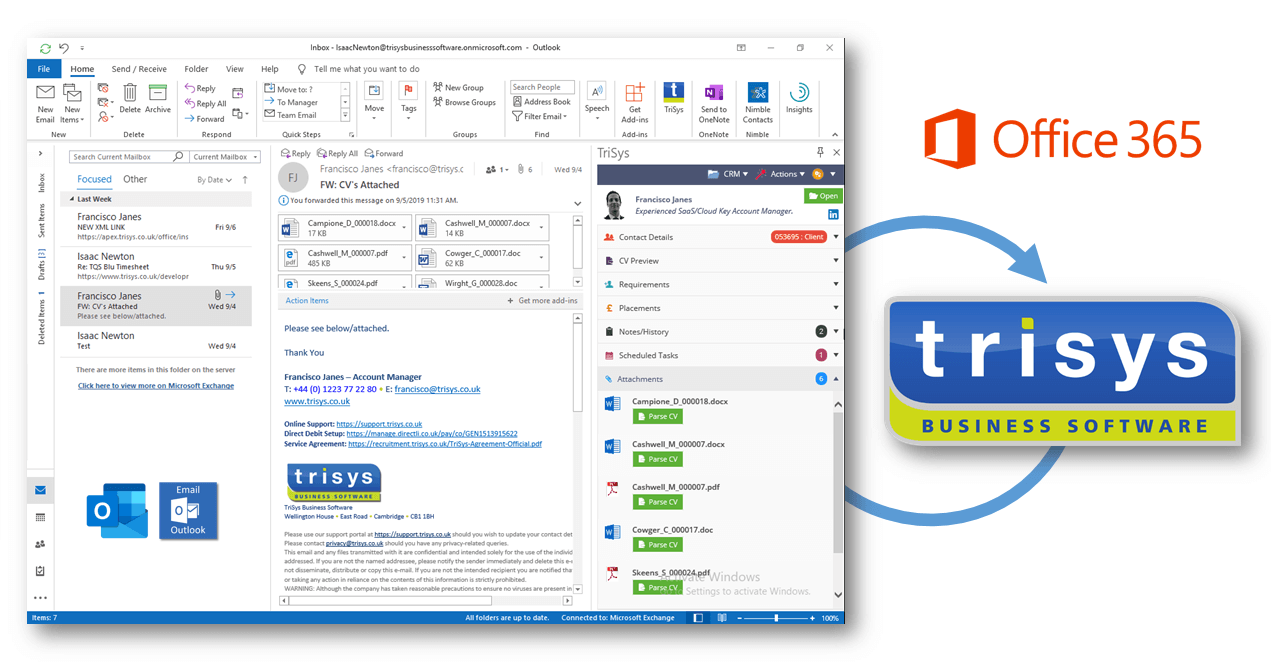

The original COM (component object model) add-in for Outlook has been redeveloped using the latest .Net framework tools to provide additional functionality for TriSys customers using Microsoft Office 2007 and 2010, whilst also providing backward compatibility for legacy TriSys customers using Office 2003.
The add-in can be used on computers with TriSys Version 8 or later installed.
This following sections detail the end-user functionality of the new add-in for Outlook.
Outlook 2003/2007 Main Toolbar
The new toolbar integrates into Outlook as a separate toolbar as shown below:

The buttons are as follows:
|
TriSys CV Auto-Recognition |
This button is used for a selected e-mail (normally the Inbox) and will take a copy of the e-mail and pass this into TriSys for auto-recognition normally of CV’s. This can also be used to import client contact e-mails when not using the Cloud Sync functionality.
|
|
Open TriSys Contact |
This button simply looks up the sender (or recipient for Sent Items folders) in TriSys based upon the e-mail address and opens the contact record in TriSys. |
|
Help |
Open this page in a browser. |
|
About |
Displays information about the current version. |
E-Mail Message Ribbon
When an e-mail message is opened, a new TriSys tab appears in the ribbon (Office 2007 and 2010 only):

The buttons are as follows:
|
CV Auto-Recognise |
This button is used for the currently open e-mail and will take a copy of the e-mail and pass this into TriSys for auto-recognition normally of CV’s.
|
|
Open Contact Record |
This button simply looks up the sender (or recipient for Sent Items folders) in TriSys based upon the e-mail address and opens the contact record in TriSys.
|
|
Generate Requirement |
This button is used to use the sender contact and the attached job description to create a new requirement record in TriSys. The requirement record is displayed in TriSys and linked to the sender as the client contact.
|
|
Link to Requirement |
This button is used to link the e-mail message to a TriSys requirement record. When pressed, TriSys displays a requirement search selection grid and when selected, the e-mail is recorded as a Note/History against the requirement, and also the client contact and company.
|
|
Link to Placement |
This button is used to link the e-mail message to a TriSys placement record. When pressed, TriSys displays a placement search selection grid and when selected, the e-mail is recorded as a Note/History against the placement, and also the client contact, company and candidate.
|
|
Link to Timesheet |
This button is used to link the e-mail message to a TriSys timesheet record. When pressed, TriSys displays a timesheet search selection grid and when selected, the e-mail is recorded as a Note/History against the timesheet, and also the client contact, company and candidate. |
|
Contracts Returned |
This button is used to identify an existing placement linked to the sender (either a client or candidate) and use the attached document as a signed and returned contract which is allocated to the correct field in the placement record and dated to today. The placement is opened up on completion. |
Outlook 2010 Ribbon
The new toolbar integrates into Outlook 2010 as a separate ribbon as shown below:

Functions are identical between all versions of the add-in.
Compose New E-Mail in Outlook
When composing a new e-mail or replying or forwarding e-mail, the TriSys tab provides the following functions:

The buttons are as follows:
|
Add Recipient |
This button is used to lookup contacts in the TriSys database and add their respective e-mail address to the To list.
|
|
Add Job Description from Requirement |
This button is used to lookup an existing requirement and add the job description to the e-mail and put the reference into the subject heading.
|
Word Add-In
The TriSys Office add-in also adds a ribbon tab to Microsoft Word:

The buttons are as follows:
|
Insert Header/Footer |
This button is used to add the standard G:\Macro\ FormatCVTemplate.doc header/footer document to the current CV which is to be sent to customers.
|
|
Remove Header/Footer |
This button is used to remove all headers/footers from the formatted CV. It will be disabled unless the word document contains both a header and a footer.
|